

[Ren'Py] Outdated Graphics Hardware Rendering Error Workaround
For Older AMD Radeon Graphics Cards

I’ve been going through some game jam games recently and encountered a peculiar graphical bug. While all of the games are Ren’Py games, I’ve never had any issues with any other games made in this engine prior to this, so it caught me off guard.
For example, from the demo “Under Your Skin [DEMO]”:
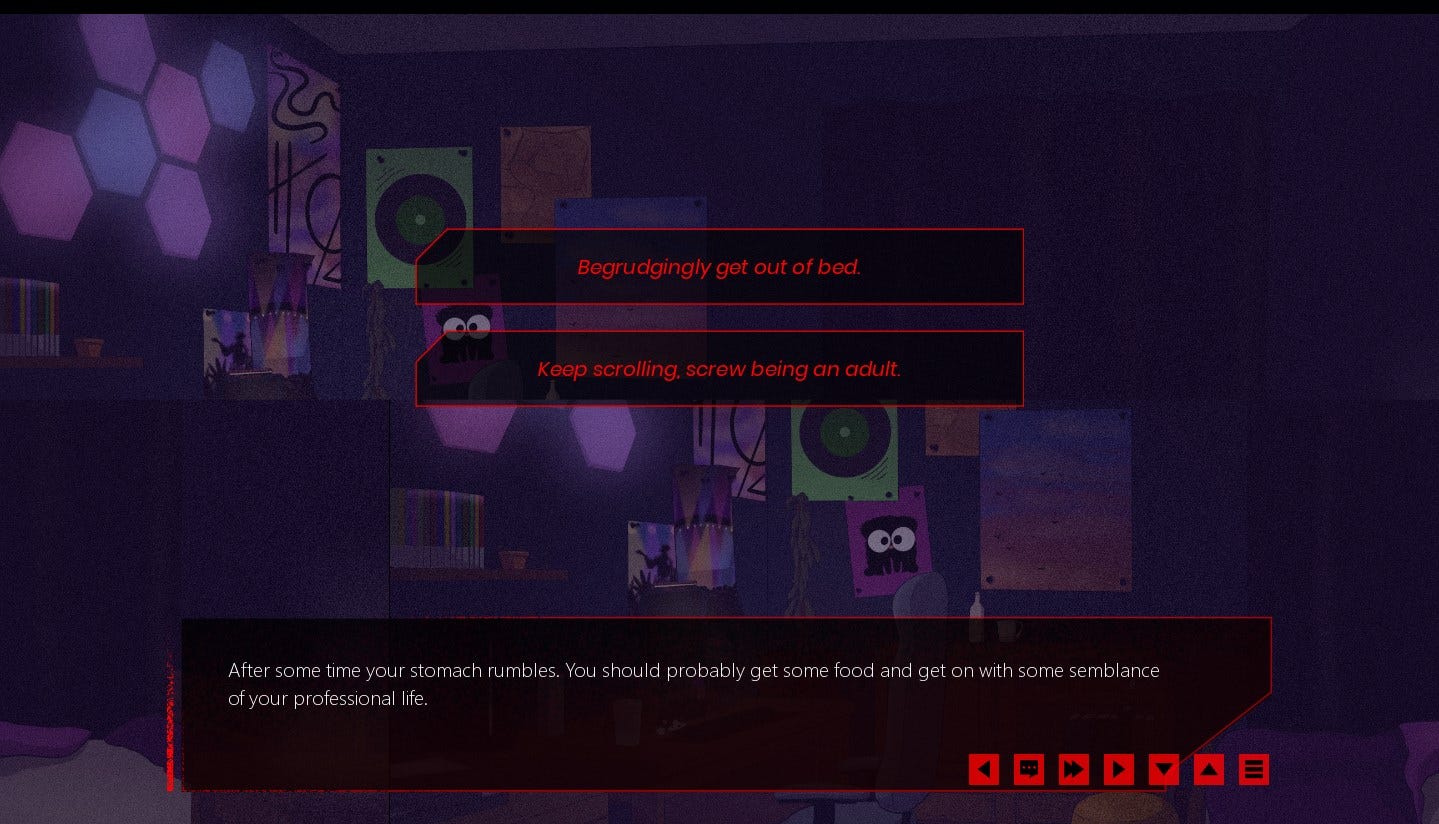
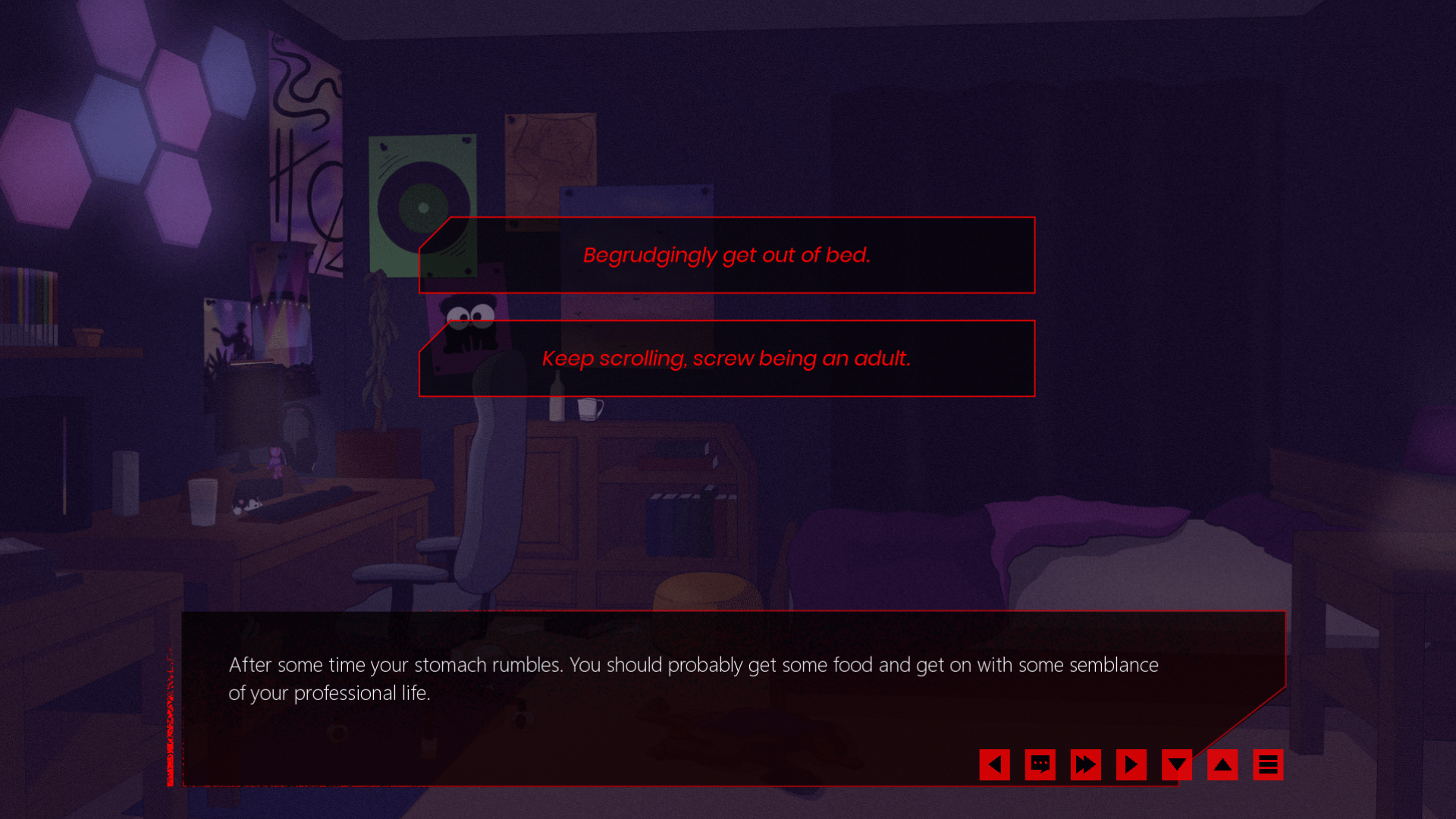
Some other examples:
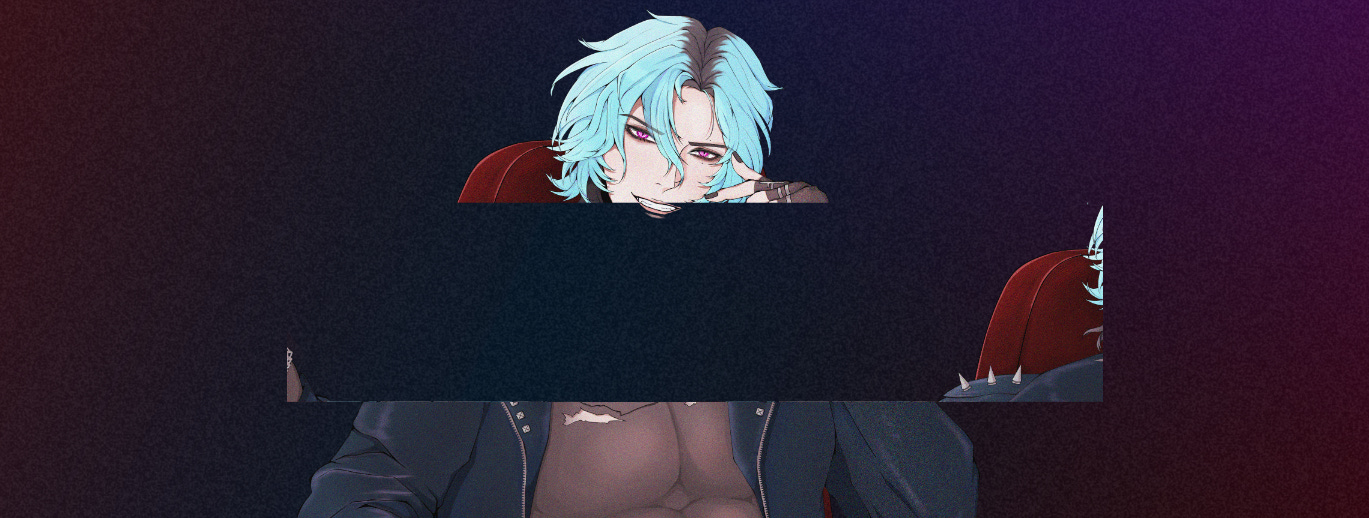
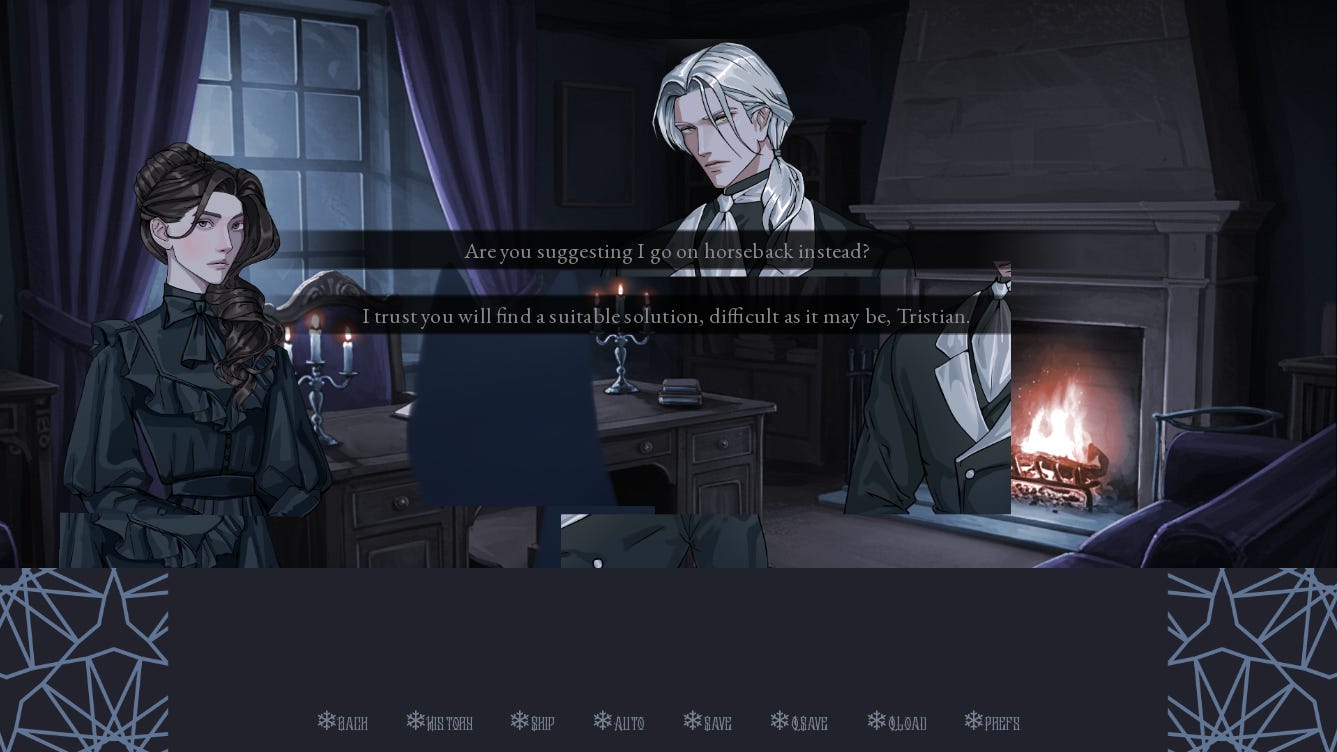
After doing some searching I discovered the issue has to do with my graphics card. In my case, the AMD Radeon HD 6800 series–though I’ve also seen it reported in other AMD Radeon HD cards. After fruitlessly trying to update my drivers, I had to admit defeat.
As it turns out, it’s a known issue that has been closed:
renpytom on Feb 5, 2023
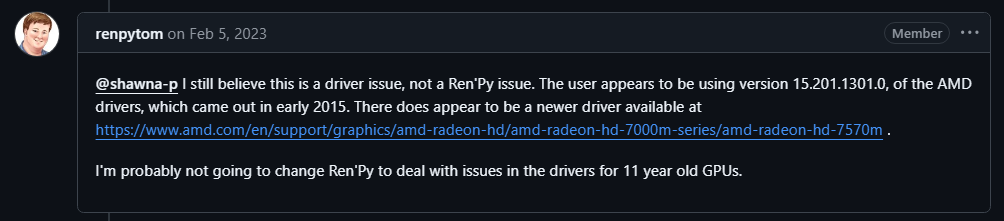
@shawna-p I still believe this is a driver issue, not a Ren’Py issue. The user appears to be using version 15.201.1301.0, of the AMD
drivers, which came out in early 2015. There does appear to be a newer driver available at
https://www.amd.com/en/support/graphics/amd-radeon-hd/amd-radeon-hd-7000m-series/amd-radeon-hd-7570m .
I’m probably not going to change Ren’Py to deal with issues in the drivers for 11 year old GPUs.
While frustrating, I completely understand why PyTom has made this choice. It’s really not worth the time or energy to deal with a niche issue for a small amount of users based on outdated hardware. That effort should be put towards something more worthwhile.
However, as someone who can’t afford to get a new graphics card for the foreseeable future, I wanted to find a solution. Thankfully I did, so I wanted to share it here for posterity, in case anyone else runs into a similar issue and doesn’t feel up to digging through various forums for the info, or in case those posts get removed.
The Workaround
Open whichever game has the error. Once you do, hit “⇧ Shift + G” to open up the graphics render settings.
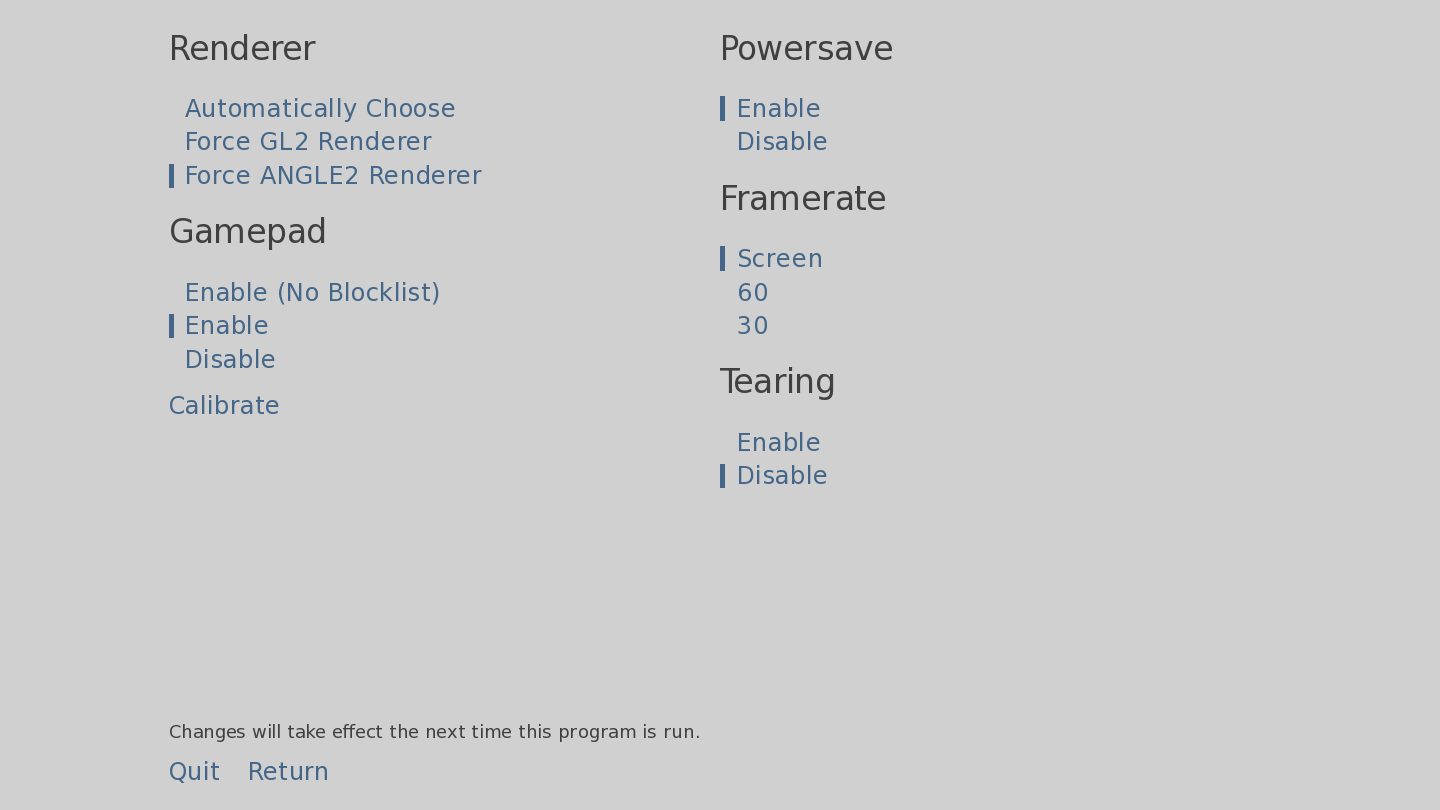
By default the Renderer will be set to “Automatically Choose.” You should click “Force ANGLE2 Renderer” because the issue has to do with the GL2 renderer.
Because the changes will only take effect the next time that the program is run, you’ll need to hit “Quit” and then restart the game.
The rendering error should be resolved at this point. The setting should remain for the particular game whenever you next open it, but other games may show the same graphics error. Repeat the above steps whenever you encounter a game with the above error.
We hope this helps!